
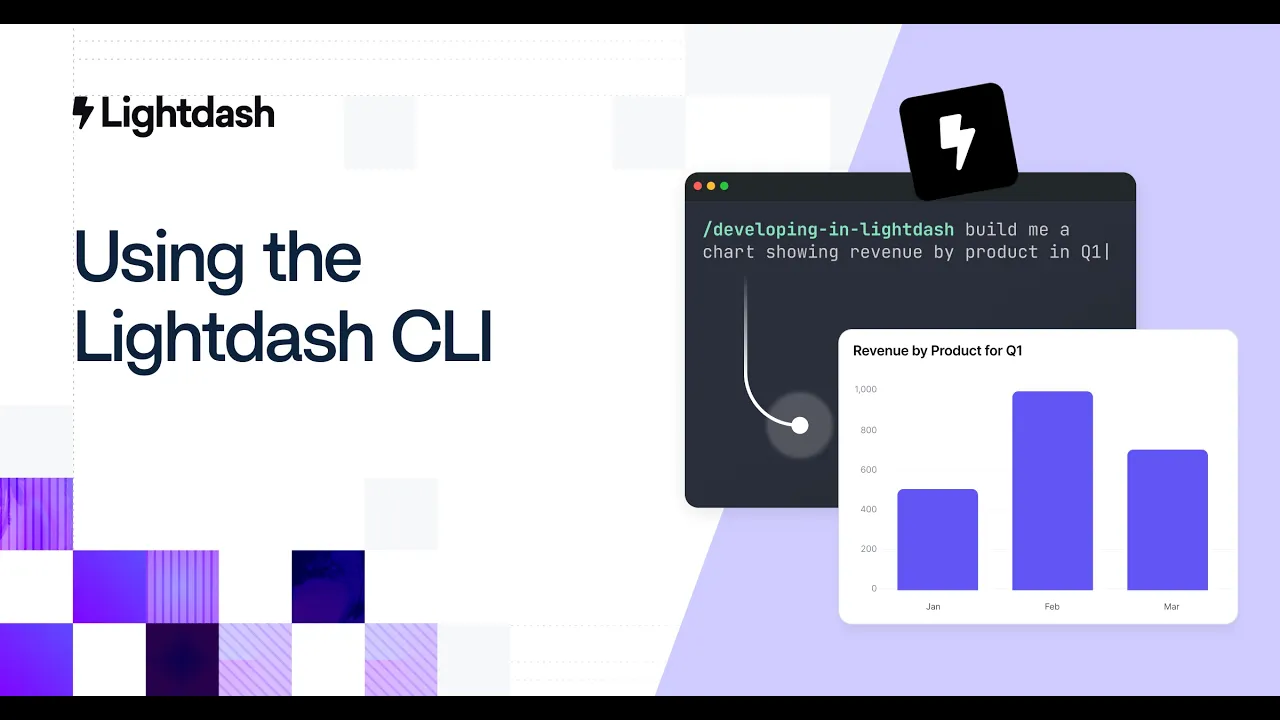


The modern data stack is built on code. Your dbt models live in Git and your transformations are reviewed in pull requests. So why is your BI tool still the odd one out?
A good BI CLI changes how your team develops, tests, and ships analytics. Here's what to look for when evaluating one.
A CLI is really an argument for treating analytics like software
When analytics is code-first, it unlocks everything data engineering already takes for granted: peer review, staging environments, automated testing, rollback, CI/CD. Without a CLI, your BI layer becomes the weakest link in an otherwise rigorous stack: changes go straight to production, there's no way to preview a metric change before stakeholders see it, and there's no automated path from a dbt pull request to a deployed project.
A CLI also matters as AI becomes part of the data workflow. Agentic BI (where AI can read, create, and deploy analytics on your behalf) is only possible if your BI tool has a machine-readable interface. The CLI is what makes that possible.
How to evaluate a BI CLI
Not all CLIs are created equal. Here's what actually matters and what to look for when comparing options:
Local development and instant preview.
You should be able to spin up a full copy of your analytics environment locally, see changes in real time, and tear it down when you're done without touching production. Be skeptical of "preview" features that only show local output or exclude your actual dashboards and charts.
PR-based preview environments.
Every pull request on your dbt project should automatically trigger a preview in your BI tool with a shareable link so reviewers can see exactly what updated dashboards and metrics will look like before anything merges. This is table stakes for teams that take data quality seriously.
Automated deployment.
When code merges to main, your BI project should update automatically. No manual sync button, no pinging a data engineer. If you have to write significant custom code to make this work, that's a red flag.
Linting and validation.
Your CLI should catch problems before your users do: checking configuration, validating that metrics and dimensions resolve correctly, and surfacing errors with file paths and line numbers.
Agentic readiness.
Ask your vendor directly: can an AI agent use your CLI to autonomously manage analytics assets? Teams are already doing this to read a dbt schema, generate a semantic layer, spin up a preview, and deploy, all in one automated workflow. If the CLI can't support this, it's already behind.
What the Lightdash CLI can do
Lightdash has had a CLI for years. Here's a quick rundown of what it enables for data teams:
lightdash preview: Your BI localhost
One command spins up a full copy of your production project against your dev environment, updating automatically every time you run dbt compile. Wired into GitHub Actions, every PR gets its own shareable preview URL.
lightdash deploy: One command to production
Deploy your Lightdash project in a single command. Wired into a merge trigger, your production project stays in sync with your dbt code automatically. The pattern teams use: PR opens → preview spins up → reviewer approves → PR merges → deploy runs.
lightdash generate: Scaffold your metrics layer
The generate command reads your dbt models and scaffolds your Lightdash configuration. This is especially useful when migrating from another tool, onboarding a new project, or letting an AI agent bootstrap your semantic layer.
lightdash lint: Catch problems before your users do
Lint validates your configuration and surfaces errors with file paths and line numbers, making it easy to add as a CI check that blocks merges with broken config. Watch Oliver demo how it works:
lightdash install-skills: Teach your AI agent how Lightdash works
One command installs context files that teach your AI coding assistant how Lightdash works: YAML format, metric types, naming conventions. Before skills are installed, getting an agent to generate correct Lightdash configuration is an exercise in back-and-forth. After, you describe what you want and it gets it right first time. Here's how data teams are using this in practice.
It's also worth noting: less technical team members can create preview projects directly from the Lightdash UI, pointing at any GitHub branch - no CLI setup needed. The CLI and the UI work together, so the whole team can participate in the workflow, not just engineers.
If you want to see what this looks like for real teams, fal use the Lightdash CLI to ship dashboards in minutes from their terminal.
And it's not just engineers getting value from it. Gen H's CCO shipped production metrics in two days using the CLI and Claude Code - a good example of what agentic readiness actually looks like beyond the terminal.
Getting started
To get started with the Lightdash CLI, just run:
You can read our full installation guide here.
If the CLI is a factor in your BI tool evaluation (and it should be) we're happy to walk through how Lightdash fits your workflow. Talk to us →
Ready to free up your data team?
Try out our all in one open, developer-loved platform.